Teacher | Virginia Trekker | Instructional Technologist

Category: Downloads (Page 1 of 9)

Jamestown

This lesson was done in Cheryl Ives’s 4th grade class at Glen Allen Elementary.  The lesson has been submitted to Henrico 21 for the 2011-2012 school year.  In my opinion, this project is a great example on how to integrate multiple subjects and technology into a lesson.

Summary from Cheryl Ives’s Henrico 21 Lesson Plan:

After completing our studies of Jamestown (VS3a-g), the students were challenged with creating video segments that would cover the topics that were studied in our unit.  The segments covered topics that included John Smith, Christopher Newport’s fleet, and Tobacco.  The students created scripts, that were written in first-person, based on the study materials provided to them and facts that they have discovered while doing their own research.  The students had to find and create props and costumes that will help the audience recognize the topic they were speaking about.  The filming and editing of the final video product was organized and completed by the students in the classroom.  This project allowed the kids be creative and show their personalities in their work while expanding their knowledge of Jamestown.

Click here to download the full lesson plan and the scoring rubric.

Final Video Product:


Drop Box

Two of my teammates have created tutorials that will help you get pictures and files off of your classroom iPads and onto your classroom computers by using the Drop Box app. It also works the other way around. You can use it to drop pictures from your computer onto the iPads in your classroom as well. Stephanie Wright has created a tutorial that will show you how to get started with DropBox.  In her video it says that you need a GMail account.  You can also use your HCPS email address.  Karen Hues has created a handout that will show you how to share files that you have with other Drop Box users.  Her handout uses HCPS email addresses to make share the files a little easier.  If you have questions let me know.

Stephanie’s Video:

Karen’s Handout:

Download Karen’s Drop Box Handout

Weathering and Erosion

I had my first weathering and erosion questions this week.  I decided to combine 3 technologies/applications that I love to use to give my teachers the resources they needed.

Keynote

I created a Keynote slideshow for the kids to use when reviewing the terms weathering and erosion.  It is a simple slideshow that only requires the kids to fill in the blanks with the appropriate terms.  When the students have completed their slides, they can hit “play” and watch the slideshow turn into a self-playing movie with animations.

Click here to download the Keynote template.

Google Earth

Using Google Earth as a tool for teaching weathering and erosion is new for me.  Google Earth is a great tool for teaching Social Studies, but the more I use it, the more I find it useful in other content areas as well.  I searched  the globe for unique land features that have been caused by weathering and erosion.  The pushpins only lead the students to locations, it is the pictures that make the pushpins worth the trip around the world.  You can download the pushpins I created using the link below.  When you click on the downloaded icon (after you unzip the file), it will automatically launch Google Earth, and load the pushpins into your “Places” window.

[nggallery id=6]

 Click here to download the Google Earth pushpins.

Internet Links

I have to admit that collecting the websites below took more time than it should have, I blame this on my ADD.  I started reading all of the information on the sites and I hope your students will enjoy them as well.  There are also a couple of challenging jigsaw puzzles that might get your kids thinking.

Grand Canyon National Park

Carlsbad Caverns National Park

Mount Everest

Oceanside Cliffs Puzzle

Rock Bridge Puzzle

Facebook and Twitter from the Past?

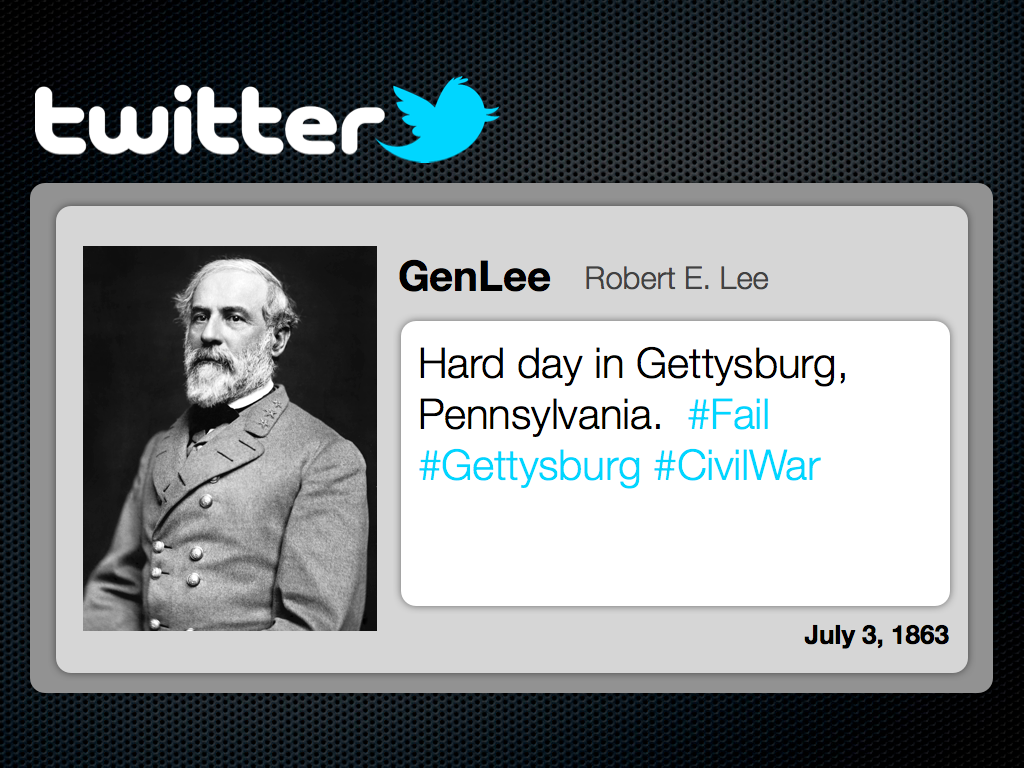
Sure George Washington and the other Founding Fathers didn’t have Facebook and Twitter, but woudn’t it have been cool if they did?  It would have been awesome to see Sacagawea’s posts about how Lewis and Clark refuse to listen and “know” where they are going.  I can imagine hew tweets [1. A message posted on Twitter consisting of 140 characters or less.] would have been re-tweeted [2. Re-tweeted messages are tweets shared in their original form by other Twitter users.] by women around the world.  The templates shared in this post are designed to let your students be creative and share the knowledge that they have gained.  These templates can be used for more than documenting the lives of historical characters.  These templates can be used for novel studies as well as creative writing.

When students use the Facebook template, they will be able to display biographical information about a historical character’s life, hobbies, career, and “friends”.  The Twitter template will challenge students to create “Tweets” that share information that is relative to the subject’s life or activities.  There is a second option inside the Twitter template, and that is the documentation of an event using a “fictional” hashtag [3. Hashtags are specific searches on Twitter using the “#” sign.  Charlie Sheen made the hashtag “#Winning” very popular during his public breakdown.]  There are example of the Facebook and Twitter templates below.  These templates were created for my MAC users, but have been exported into .ppt and .doc format.

[nggallery id=5]

Click here to download the Facebook template for MACs.

Click here to download the Twitter template for MACs.

Click here to download the Facebook template for PCs.

Click here to download the Twitter template for PCs.

Sound- SOL 5.2 with Animation

This template was created for students to demonstrate echo location.  The teacher that requested this lesson was going to have her students use Keynote to create drawings and animations on a future project.  We used the template(attached below) animate the use of echo location by a dolphin and a bat.  The students used the shape tools to draw their backgrounds and then used builds and actions to move the “sound waves”.   The video below demonstrates how to use the inspector to animate the “sound waves”.

Click here to download the Keynote template.

« Older posts